A Tokyo Night new tab page for Chrome
Tokyo Night’s deep blues and neon accents are a favorite in Neovim and VS Code. Stackboard’s Tokyo Night palette brings the Night variant to dark mode and Day to light mode on Chrome’s new tab.
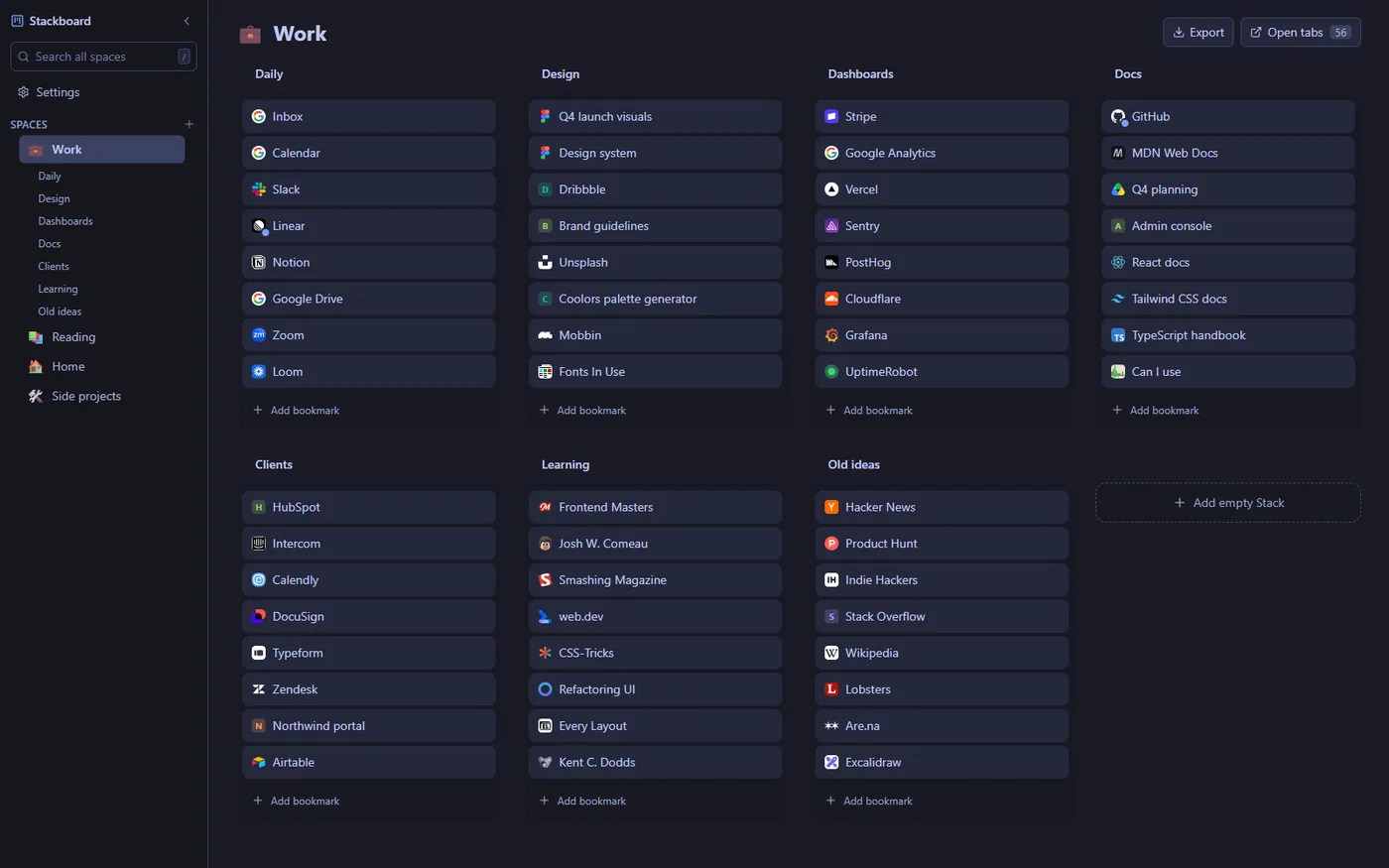
The colors
| Background | Cards | Text | Muted text | Accent | |
|---|---|---|---|---|---|
| Night | #1a1b26 | #24283b | #c0caf5 | #99a0c6 | #7aa2f7 |
| Day | #e1e2e7 | #f2f2f4 | #2e4b91 | #46517c | #2a69c2 |
The values follow folke’s tokyonight.nvim. Cards use the Storm background so stacks stand out from the Night page; a few Day colors are slightly deepened so text passes contrast checks.
Turn it on
- Add Stackboard to Chrome (or Brave) from the Chrome Web Store and open a new tab. Choose Keep it if Chrome asks whether to keep the new page.
- Click Settings in the sidebar, just under the search box. Appearance is the first section.
- Click the Tokyo Night swatch. The board behind the dialog changes as you click, so you see it before you close Settings.
- Set Mode to Dark for Night, Light for Day, or System to switch with your computer.
Background and density
Under the palette you can keep a solid color, pick one of three gradients made from the palette, or use your own picture with sliders to dim and blur it. The picture is stored in your browser on that computer and never uploaded. Over a picture, stacks and the sidebar turn into frosted panels so links stay readable. Compact density fits more stacks on a big board.
Questions
Is it free?
Yes. Every palette is included, with no account and no paid tier.
Do my theme settings sync to my other computers?
Your spaces and bookmarks sync through Chrome, because they are ordinary Chrome bookmarks. The palette, mode and wallpaper are saved per computer, so set them once on each.
Theme your new tab
A free Chrome extension that turns your new tab into a board of your own bookmarks. No account, nothing leaves your browser.
Add to Chrome, it’s free