How to remove AI Mode from the Chrome new tab page
Recent versions of Chrome put Google’s AI Mode in the address bar and in the search box on the new tab page. Chrome has no simple on/off switch for it in Settings, and recent versions removed the chrome://flags toggles that older guides point to. These three ways still work.
1. Turn it off with Google’s own policy
Chrome has an official policy for this, AIModeSettings. Google’s documentation describes it as controlling “AI Mode integrations in the address bar and the New Tab page search box”, where the value 1 means “Do not allow AI Mode integrations”. On Windows:
- Press Win+R, type
regeditand press Enter. - Go to
HKEY_LOCAL_MACHINE\SOFTWARE\Policies. Create a key namedGoogleif it isn’t there, and inside it a key namedChrome. - Inside
Chrome, create a DWORD (32-bit) Value namedAIModeSettingsand set it to1. - Open
chrome://policyand click Reload policies to check it took.
Two things to know: editing the registry needs administrator rights, and any policy makes Chrome show “Managed by your organization” in its menu. That’s expected. On a Mac or Linux the policy has the same name; Google’s policy page has the details.
2. Use a different default search engine
Google’s documentation notes that AI Mode needs Google as your default search engine. Open chrome://settings/search and choose another engine, and the AI Mode entry points go away. The trade-off is that your searches go to that engine.
3. Replace the new tab page
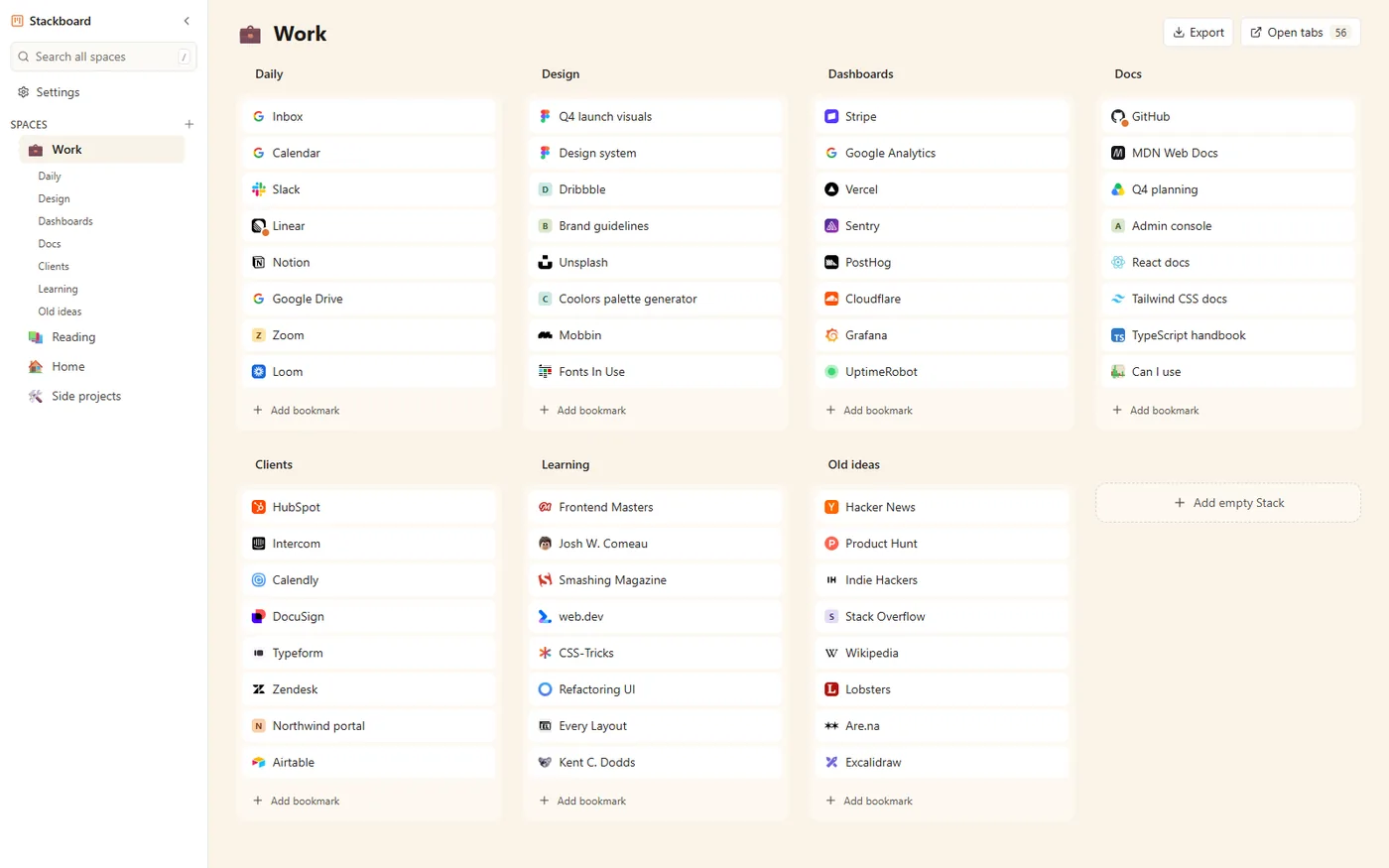
An extension that replaces the new tab removes Chrome’s search box from new tabs, AI Mode button included. Stackboard puts a board of your own bookmarks there, and your address bar still searches as usual. The address bar keeps its own AI Mode entry unless you also use option 1 or 2.
Which to choose
| Option | Removes from new tab | Removes from address bar | Effort |
|---|---|---|---|
| AIModeSettings policy | Yes | Yes | Registry edit, admin rights |
| Different search engine | Yes | Yes | One setting, changes your searches |
| New tab extension | Yes | No | Install and choose Keep it |
Questions
Is there a setting to turn off AI Mode in Chrome?
Not as of October 2026. The supported ways are the AIModeSettings policy or a non-Google default search engine.
Will the policy survive Chrome updates?
It’s an official, documented Chrome policy (supported since version 138), so it isn’t an experiment that disappears like a flag.
Does this turn off Gemini too?
No. Gemini in Chrome has its own policy, GeminiSettings, listed in the same section of Google’s policy documentation.
Try Stackboard
A free Chrome extension that turns your new tab into a board of your own bookmarks. No account, nothing leaves your browser.
Add to Chrome, it’s free