How to save all your open tabs in Chrome
Chrome can bookmark every open tab in one go, and an extension can also close them for you and keep them organized. Here are both, and how to get the tabs back later.
1. Bookmark all tabs (built into Chrome)
- Press Ctrl+Shift+D (Cmd+Shift+D on a Mac). You can also right-click any tab and choose Bookmark all tabs, or use the three-dot menu, then Bookmarks and lists.
- Name the new folder and pick where it goes, such as the bookmarks bar.
- Click Save. Your tabs stay open, so close the window yourself when you’re ready.
To reopen them: right-click the folder in your bookmarks bar or the Bookmark Manager and choose Open all or Open all in new window.
This is quick, but each save makes another folder, and a month later the bookmarks bar is full of folders named after dates.
2. Stash the window in one click
A stash saves the tabs and closes them in the same step. With Stackboard:
- Press Alt+Shift+S, or click the Stackboard icon and choose Stash this window.
- Every tab becomes a bookmark in a Stash space, with one stack per tab group, and the window clears.
- Open a new tab to see them. Rename a stack, drag links into other stacks, or press / to search.
To reopen them: click a stack’s open button and its tabs come back as a named tab group.
3. Save only the tabs you pick
Ctrl+click (Cmd+click on a Mac) or Shift+click tabs in the tab strip to select a few, then open the Stackboard popup. It offers Save N selected tabs, and one tap on a stack saves all of them.
Every window at once: tab bankruptcy
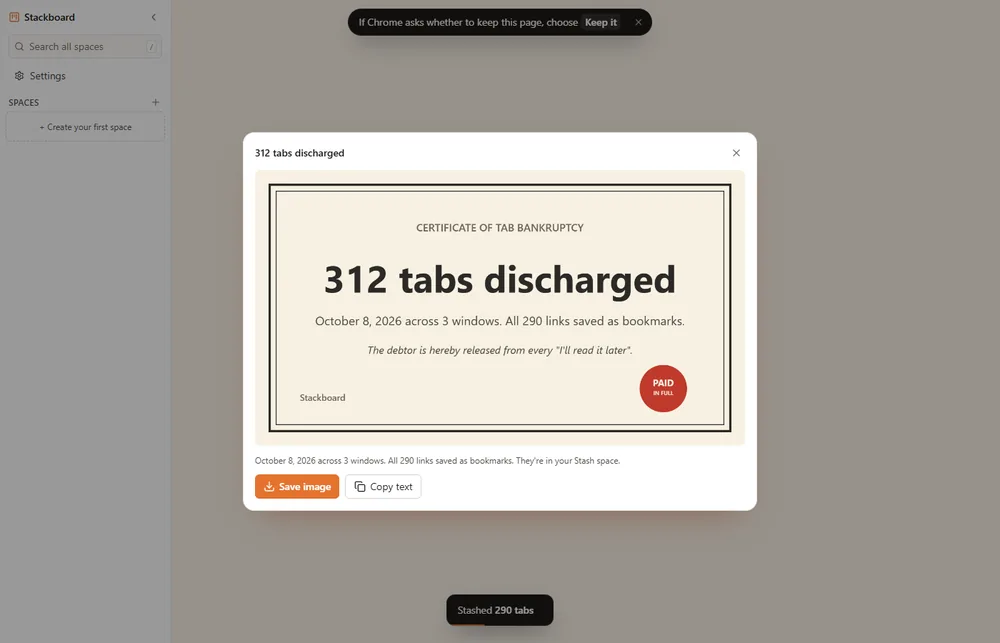
Forty tabs in four windows? Declare tab bankruptcy in the Stackboard popup stashes every tab in every window, closes them all and gives you a certificate you can save as an image.
Which one to use
| You want to | Use |
|---|---|
| Keep the tabs open and just have a backup | Bookmark all tabs (Ctrl+Shift+D) |
| Clear the window and find the tabs again later | Stash this window |
| Save a few tabs out of many | Select them, then Save selected tabs |
| Start over with zero tabs | Tab bankruptcy |
Questions
Does Chrome reopen my tabs after a restart?
It can. In Settings, under On startup, choose Continue where you left off. That restores your last session, but it’s no substitute for saving tabs you want to keep.
Where does Bookmark all tabs put the folder?
Wherever you choose in the save dialog: the bookmarks bar, Other bookmarks or any folder. You can move it later in the Bookmark Manager.
Are stashed tabs real bookmarks?
Yes. Stackboard saves them as ordinary Chrome bookmarks under Other bookmarks › Stackboard, so they sync and they stay if you uninstall.
Try Stackboard
A free Chrome extension that turns your new tab into a board of your own bookmarks. No account, nothing leaves your browser.
Add to Chrome, it’s free