How to organize your Chrome bookmarks
Most bookmark collections fail the same way: everything gets saved, nothing gets found. A few folders, a short bookmarks bar and one place where you see them every day fix most of it.
1. Open the Bookmark Manager
Press Ctrl+Shift+O (Cmd+Option+B on a Mac), or type chrome://bookmarks in the address bar. You can drag bookmarks between folders here, select several with Ctrl or Shift, and search everything from the box at the top.
2. Make folders by area of your life
Topic folders (“Design”, “Recipes”, “JavaScript”) multiply fast. Start with four to six areas instead, then add a level only when a folder gets long:
- Work: dashboards, docs and tools you use every week
- Projects: one folder per project, archived when it ends
- Reading: articles and videos for later
- Home: bills, travel, health and the rest of life admin
3. Keep the bookmarks bar short
The bar is for links you open every day. Everything else goes in Other bookmarks. If the bar scrolls off the side of the window, it has stopped working.
4. Sort and clean up
- Sort by name: in the Bookmark Manager, open a folder, click the three-dot menu at the top right and choose Sort by name.
- Dead links: export your bookmarks and drop the file into our bookmark graveyard, which checks every link in your browser and shows which sites no longer exist.
- Back up first: the three-dot menu in the Bookmark Manager has Export bookmarks, which saves an HTML file you can import into any browser.
5. Put them where you’ll see them
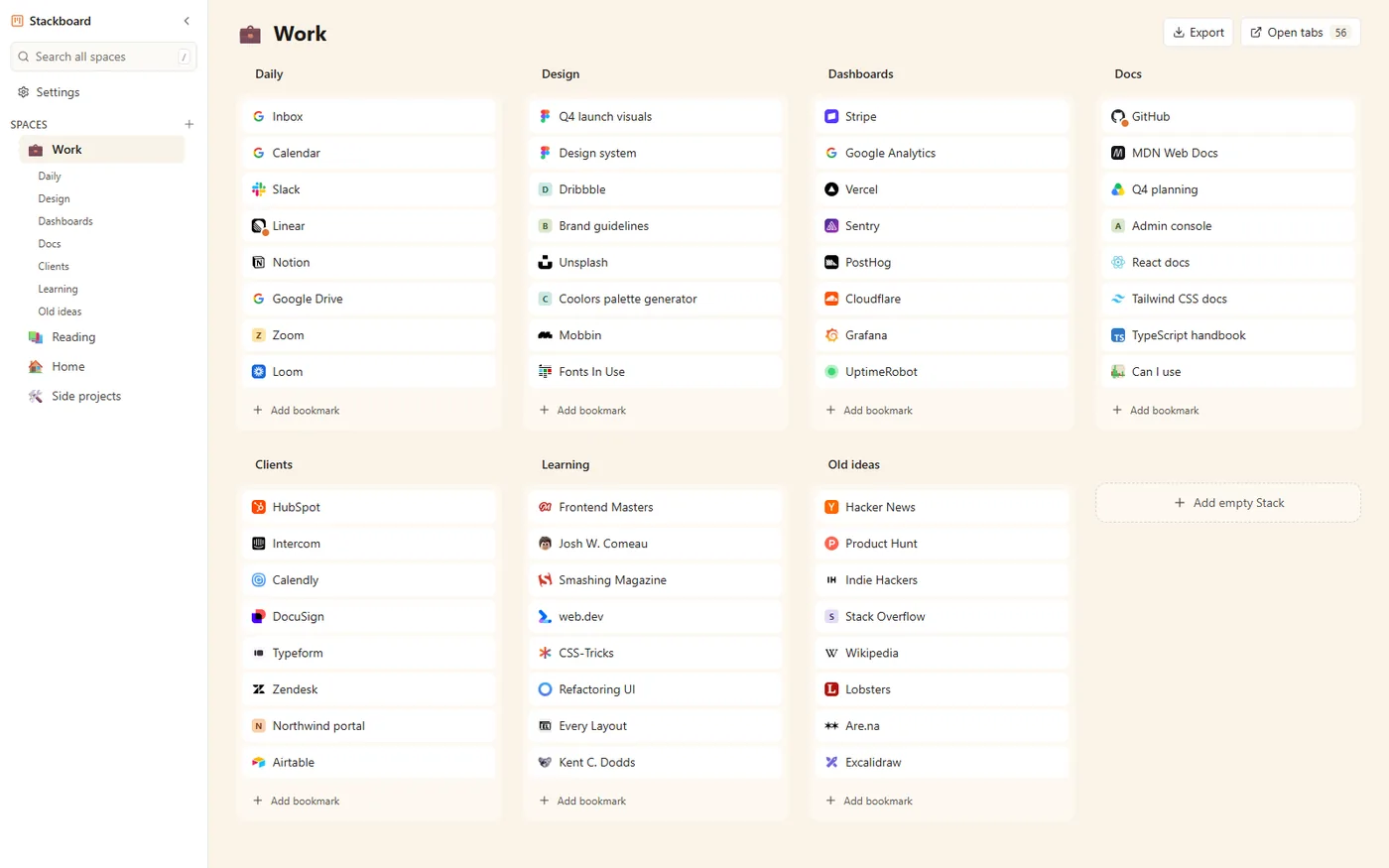
Bookmarks hidden in folders get forgotten. Stackboard shows them on your new tab page as a board: spaces down the side, stacks of links across. One click copies your bookmarks bar in, one stack per folder, and everything stays an ordinary Chrome bookmark, so the Bookmark Manager and Chrome sync keep working as before.
Questions
Do Chrome bookmarks sync across computers?
Yes, when you’re signed in to Chrome with sync turned on for bookmarks.
Can Chrome sort bookmarks alphabetically?
Yes. In the Bookmark Manager, open the folder, click the three-dot menu at the top right and choose Sort by name.
How do I back up my bookmarks?
Open the Bookmark Manager, click the three-dot menu and choose Export bookmarks. Keep the HTML file somewhere safe.
Try Stackboard
A free Chrome extension that turns your new tab into a board of your own bookmarks. No account, nothing leaves your browser.
Add to Chrome, it’s free