What is tab bankruptcy, and how do you declare it?
Tab bankruptcy is closing every open tab at once, on purpose, because you've accepted you'll never get through them. You write the tabs off and start again with an empty browser. Done well, you save a copy first, so anything you needed is still one click away.
Where the term comes from
It borrows from email bankruptcy: deleting or ignoring every email older than a certain date because there are too many to answer, often with a note asking senders to write again if it still matters. Wikipedia usually credits that phrase to the author Lawrence Lessig in 2004, and says it can also be traced to Sherry Turkle in 2002.
Tab bankruptcy moves the idea to the browser. Each open tab is a small debt: an article to read, a product to compare, a task to finish. When the debts outgrow any hope of paying them off, you declare bankruptcy and clear the books.
Why people declare it
Tabs pile up as a to-do list nobody reads. A 2021 Carnegie Mellon study found people kept tabs open as reminders and struggled to close them, worried that anything out of sight would be lost, even as the number became unmanageable. About a quarter of participants in one part of the study said too many tabs had crashed their browser or computer.
- For it: Chrome gets lighter, you can find the work in front of you, and the nagging backlog goes with the tabs.
- Against it: you lose the context of half-done work, and sometimes the one tab that mattered.
Saving before you close removes most of the downside. The tabs are filed out of sight, and you can search them later.
How to declare tab bankruptcy in Chrome
- Save a snapshot of each window. Press Ctrl+Shift+D (Cmd+Shift+D on a Mac), name the folder with today's date and click Save. Tab groups become subfolders. Repeat in every window.
- Clear each window. Open a new tab, right-click it and choose Close other tabs. Pinned tabs survive this, so unpin or close them separately. Close extra windows with Ctrl+Shift+W (Cmd+Shift+W on a Mac).
- Mind your startup setting. If On startup is set to Continue where you left off, Chrome reopens whatever was open when it quit. Clearing the tabs first, as in step 2, gives you a clean start next time too.
Changed your mind straight away? Ctrl+Shift+T reopens recently closed tabs and windows, newest first. After that, the folders from step 1 are in your bookmarks. The full set of closing methods is in how to close all tabs in Chrome.
Or let Stackboard file the paperwork
Stackboard's toolbar popup has Declare tab bankruptcy. Click it, click again to confirm, and it stashes every tab in every window as bookmarks in a Stash space, closes them all, and hands you a certificate you can save as an image. Each stack reopens as a named tab group whenever you want those tabs back.
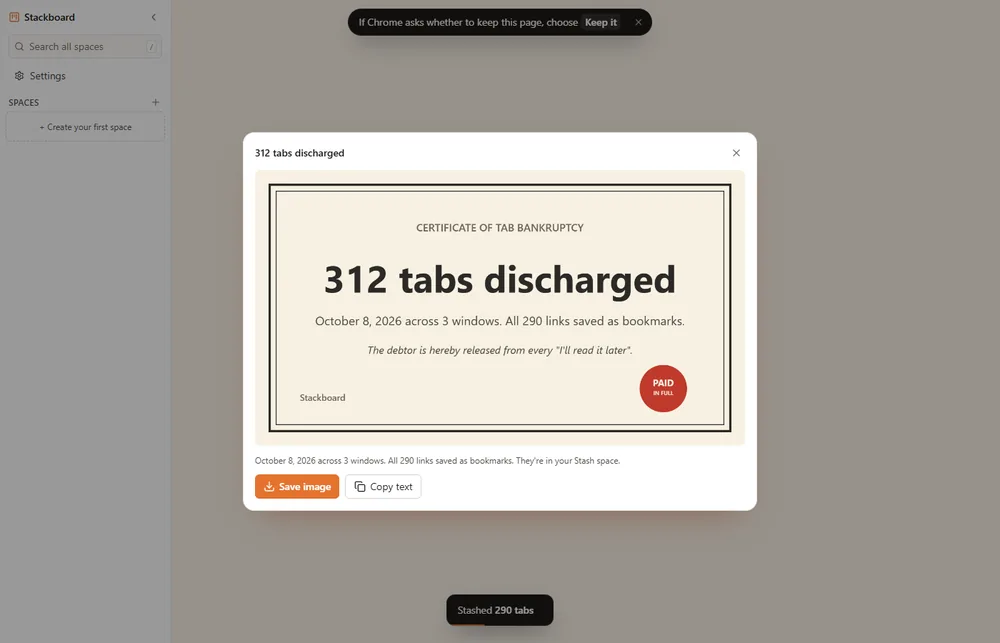
Already closed everything by hand? Our free tab bankruptcy certificate generator makes one in your browser: enter how many tabs you closed and download the certificate.
Staying solvent
- Turn on Memory Saver (
chrome://settings/performance) so the tabs you keep cost less. - Give each task a tab group, and close the group when the task is done. Chrome keeps it in the Tab groups menu.
- Once a week, bookmark or stash anything you haven't touched in days.
More habits in too many tabs open.
Questions
What does it mean to declare tab bankruptcy?
It means closing all your open browser tabs at once and starting fresh, usually after the count got out of hand. The phrase borrows from email bankruptcy.
Will I lose my tabs if I declare tab bankruptcy?
Only if you skip the save. Bookmark each window first with Ctrl+Shift+D, or use a stash, and every tab stays one click away.
How do I close all tabs at once in Chrome?
Close the window with Ctrl+Shift+W (Cmd+Shift+W on a Mac), or right-click a tab and choose Close other tabs to keep just that one.
Can I undo tab bankruptcy?
Right away, Ctrl+Shift+T reopens recently closed tabs and windows. Later, open the folders you saved, or a Stackboard stack, which reopens as a named tab group.
Try Stackboard
A free Chrome extension that turns your new tab into a board of your own bookmarks. No account, nothing leaves your browser.
Add to Chrome, it’s freeSources
- Wikipedia: Email bankruptcy
- Carnegie Mellon University: Overcoming tab overload (May 2021)
- Google Chrome Help: Chrome keyboard shortcuts
- Google Chrome Help: Manage tabs in Chrome (computer)
- Google Chrome Help: Set your homepage and startup page
- Google Chrome Help: Personalize Chrome performance (Memory Saver)
- Chromium source: tab right-click menu (Close other tabs, Close tabs to the right)
- Chromium source: Close other tabs skips pinned tabs
- Chromium source: Bookmark all tabs saves each tab group as a subfolder