How to show your bookmarks on the Chrome new tab page
Chrome’s New Tab page doesn’t list your bookmarks. Its tiles are shortcuts, which are a separate list. To see bookmarks there, show the bookmarks bar on new tabs, or replace the page with an extension built around your bookmarks.
Option 1: the bookmarks bar on new tabs only
Chrome can show the bookmarks bar on the New Tab page and hide it on websites:
- Chrome 155 and earlier: hide the bar with Ctrl+Shift+B (Cmd+Shift+B on a Mac). It leaves web pages and stays on new tabs, provided you have at least one bookmark.
- Chrome 156 and later (rolling out from 20 October 2026): open the three-dot menu › Bookmarks and lists › Show bookmark bar › Only show on New Tab Page. The same choice is under Bookmarks bar in
chrome://settings/appearance. In these versions the shortcut switches between always showing and always hiding, so use the menu.
Left on its default, Chrome 156 may hide a bar you never use from new tabs after a couple of weeks, and it tells you when it does, with an Undo button. Choosing Only show on New Tab Page yourself, or clicking a bookmark on the bar now and then, keeps it there. How to show the bookmarks bar in Chrome covers the rest.
Option 2: shortcuts
The tiles under the search box are shortcuts. They don’t come from your bookmarks, and adding one doesn’t create a bookmark. To make them yours:
- Click Customize Chrome at the bottom right of a new tab.
- Under Shortcuts, choose My shortcuts to pick the sites yourself, or Most visited sites to let Chrome choose.
- Close the panel and click Add shortcut to add a site. Point at a tile and click its three dots to edit or remove it.
Shortcuts suit a handful of sites, and Chrome limits how many you get. How to add more shortcuts explains the limit. Google’s help also notes that customizing the New Tab page needs a signed-in Google Account and Google as your default search engine.
Option 3: replace the new tab page with your bookmarks
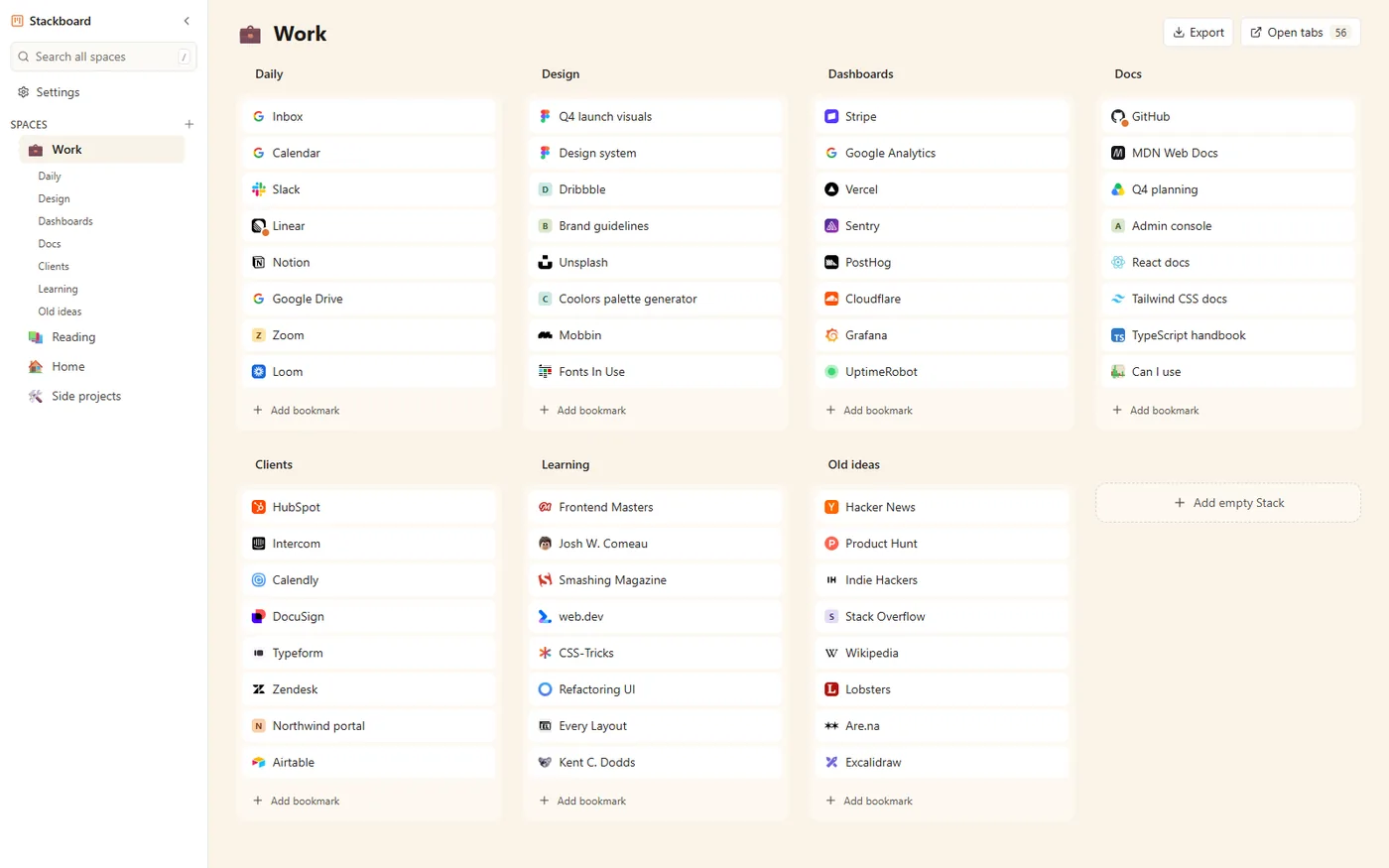
An extension can swap Chrome’s New Tab page for one that shows your bookmarks. Stackboard is a free one we make. It lays bookmarks out as a board: spaces down the side, one for each area of your life, and stacks of links across the page.
- Install Stackboard from the Chrome Web Store.
- Open a new tab. When Chrome asks Change back to Google?, choose Keep it.
- On the welcome screen, copy your bookmarks bar in. Each folder that holds links becomes a stack, and your original bookmarks stay where they are.
- Press / to search every space, and 1 to 9 to jump between spaces.
Everything on the board is an ordinary Chrome bookmark in Other bookmarks › Stackboard, so Chrome sync takes it to your other computers and uninstalling leaves it in place. There’s no account to create. Two trade-offs: the board works on copies, so later changes to your original folders don’t appear on it, and Chrome’s search box leaves the New Tab page (the address bar still searches).
Option 4: keep bookmarks beside the page
If you mostly want your bookmarks within reach, the side panel lists them next to the page you’re on; see how to open bookmarks in the side panel. For big changes, the Bookmark Manager (Ctrl+Shift+O) opens in a tab of its own. Chrome has no setting to make chrome://bookmarks your new tab page.
Which to choose
| You want | Use |
|---|---|
| A row of favorite sites on each new tab | The bookmarks bar, shown on the New Tab page only |
| A few big tiles for the sites you use most | Shortcuts, set to My shortcuts |
| All your bookmarks, organized, every time you open a tab | A bookmarks new tab extension such as Stackboard |
| Bookmarks next to whatever page you’re reading | The bookmarks side panel |
Questions
Can Chrome show my bookmarks on the new tab page?
Only through the bookmarks bar, which Chrome can show on new tabs alone. The tiles on the page are shortcuts, a separate list you manage in Customize Chrome.
Are Chrome shortcuts the same as bookmarks?
They’re separate. Shortcuts live on the New Tab page, and adding or removing one leaves your bookmarks untouched.
How do I hide the bookmarks bar on the new tab page?
In Chrome 156 and later, choose Always hide under Bookmarks and lists › Show bookmark bar. Earlier versions show the bar on new tabs whenever you have bookmarks, unless your organization switches it off by policy.
Will a new tab extension change my bookmarks?
Stackboard reads and writes ordinary Chrome bookmarks in its own folder, and copying your bookmarks bar in leaves the originals where they are.
Try Stackboard
A free Chrome extension that turns your new tab into a board of your own bookmarks. No account, nothing leaves your browser.
Add to Chrome, it’s freeSources
- Google Chrome Help: Customize your New Tab page in Chrome
- Google Chrome Help: Create, find and edit bookmarks in Chrome
- Google Chrome Help: Chrome keyboard shortcuts
- Chrome Enterprise policies: BookmarkBarEnabled
- Chromium source: when the bookmarks bar shows (bookmark_bar_controller.cc)
- Chromium source: the Bookmarks and lists menu (bookmark_sub_menu_model.cc)
- Chromium release schedule (Chrome 156 stable on 20 October 2026)