How to change the new tab background in Chrome, or use your own picture
Open a new tab, click Customize Chrome at the bottom right, then Change theme. Pick a picture from Google’s gallery, or choose Upload an image to use your own. Chrome then suggests a browser color to match.
Use your own picture
- Open a new tab and click Customize Chrome at the bottom right.
- Under Appearance, click Change theme.
- Click Upload an image and choose a JPG or PNG file.
The picture becomes the background of every new tab. A landscape image at least as large as your screen looks sharpest. Chrome picks a matching color for the tabs and toolbar; if you don’t like it, choose another under Appearance.
Use Google’s gallery
- In Customize Chrome, click Change theme.
- Open a collection and click a picture.
- For a new picture every day, open a collection and turn on Refresh daily.
If you’re in the US, 18 or older and signed in to Chrome, the same page also offers Create with AI, which generates a theme from a subject, style and mood you pick.
Go back to the plain background
In Customize Chrome, click Reset to Default Chrome at the bottom of the panel, or open Change theme and pick the Default Chrome tile.
Themes from the Chrome Web Store
A Chrome theme recolors the browser and sets the new tab background at the same time. Go to Settings > Appearance > Theme to browse them in the Chrome Web Store, and click Add to Chrome on one you like. To remove it, click Reset to default on the same Settings page.
The catch if you use a new tab extension
Backgrounds from Customize Chrome only show on Google’s own new tab page. If an extension replaces your new tab, choosing or uploading a background in Customize Chrome switches you back to Chrome’s page: recent versions of Chrome turn off the extension that controls the new tab when you set a background there. Use the extension’s own background setting.
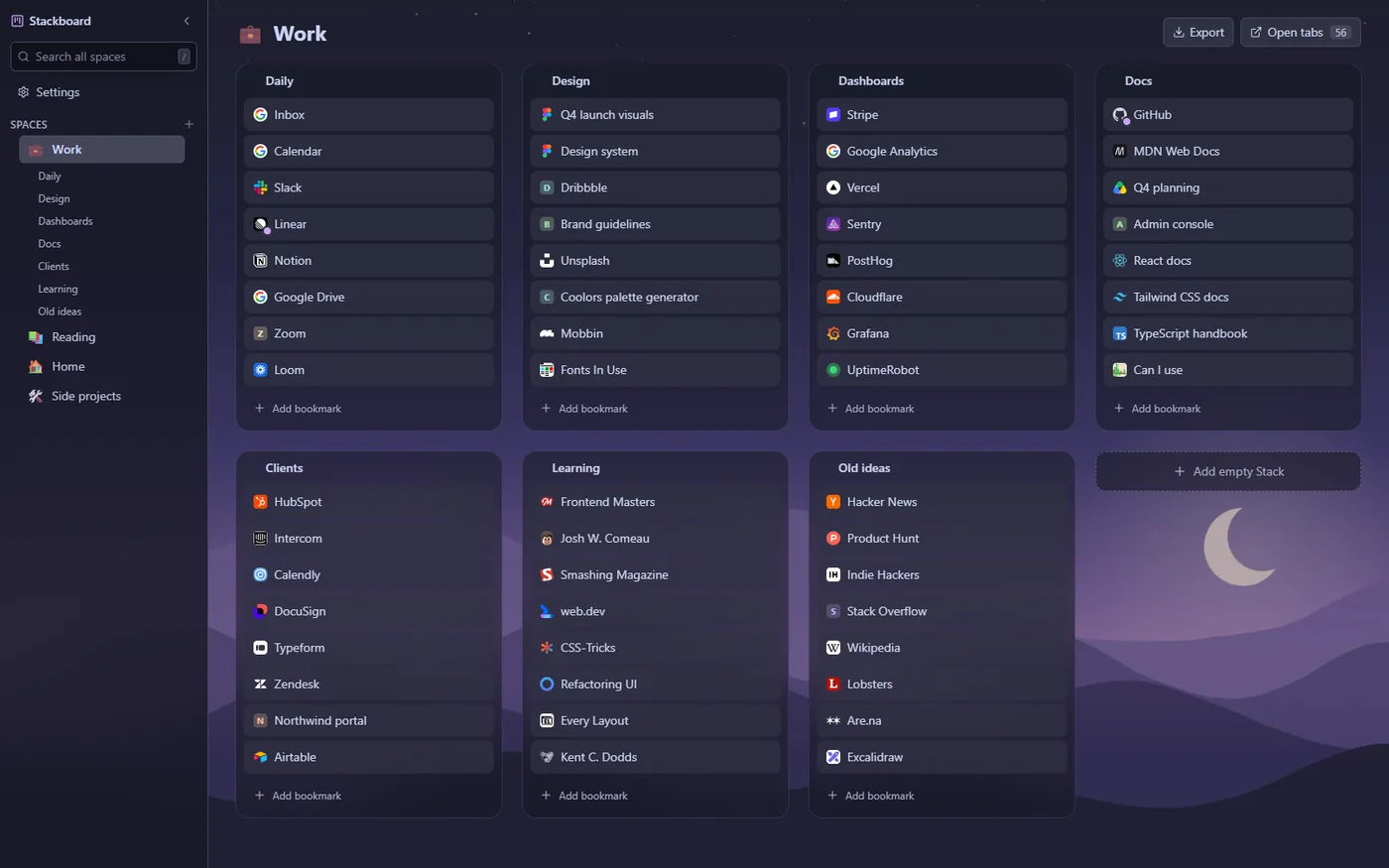
In Stackboard, open Settings and choose Image as the background under Appearance. Pick a picture, then use the dim and blur sliders so your stacks stay readable. The picture stays on that computer, and there are solid colors and gradients too.
When you can’t change the background
- There’s no Customize Chrome button. Google’s help says customizing the New Tab page needs Google as your default search engine. See the third-party new tab page.
- The background options are missing on a work or school computer. Administrators can turn custom backgrounds off with the
NTPCustomBackgroundEnabledpolicy. - Your photo doesn’t show up in the file picker. Chrome’s upload dialog lists JPG, PNG and GIF files. Convert a HEIC or WebP photo to JPG first.
Questions
What size should a Chrome new tab background be?
Google doesn’t publish a required size. A landscape picture at least as big as your screen stays sharp, for example 1920 by 1080 pixels on a full HD monitor.
Why did my new tab extension turn off?
If you picked or uploaded a background in Customize Chrome, Chrome turned the extension off so its own page could show the picture. Turn the extension back on in chrome://extensions.
How do I get the default Chrome background back?
Open Customize Chrome and click Reset to Default Chrome at the bottom of the panel.
Can I set a background on the third-party new tab page?
Not with an upload. That page only shows your Chrome theme’s colors, plus the background picture of a theme from the Chrome Web Store.
Try Stackboard
A free Chrome extension that turns your new tab into a board of your own bookmarks. No account, nothing leaves your browser.
Add to Chrome, it’s freeSources
- Google Chrome Help: Customize your New Tab page in Chrome
- Chrome Web Store Help: Download or remove Chrome themes
- Google Chrome Help: Customize Chrome themes with AI
- Chromium source: customize_chrome_page_handler.cc (upload file types, background choices)
- Chromium source: customize_chrome_utils.cc (a background choice turns off new tab extensions)
- Chrome Enterprise policy list: NTPCustomBackgroundEnabled
- Chromium source: the third-party new tab page