How to change bookmark icons and folder colors in Chrome
Chrome has no setting to change a bookmark’s icon or a folder’s color. Each bookmark shows the website’s own icon and every folder gets the same folder icon. Two tricks get close: delete a bookmark’s name to leave only its icon, or start a name with an emoji.
What Chrome lets you change
Right-click a bookmark and choose Edit and you get three things: its name, its URL and the folder it lives in. A folder has only a name, changed with Rename. There’s no field for an icon or a color.
Show only icons on the bookmarks bar
- Right-click a bookmark on the bar and choose Edit.
- Delete everything in the Name box.
- Click Save. The bookmark shrinks to the site’s icon.
Do this for the sites you recognize by their icon and far more of them fit in one row. Screen readers still announce each one by its address. Folders need a name to tell them apart, so give them a short emoji name, as below.
Add an emoji to a bookmark or folder name
- Right-click the bookmark and choose Edit, or right-click a folder and choose Rename.
- Put the cursor at the start of the name and open the emoji picker: Win+. on Windows, or Fn+E (the Globe key) on a Mac, where it’s also under Edit › Emoji & Symbols.
- Pick an emoji, type a space and save.
Chrome still shows the site icon or the folder icon, with your emoji right after it. A folder named only “💼” or “🏠” takes very little room on the bar and is easy to spot. Because the emoji is part of the name, it syncs, exports and imports like any other text.
Color-code your folders
Folders have no color setting. The nearest thing is a colored emoji at the start of the name: 🔴 for urgent, 🟢 for personal, 🔵 for work, or whatever scheme suits you. Use one color per area of your life and the bookmarks bar becomes easy to scan.
If you’d rather label folders by subject, pick emoji with one clear shape, since the bar draws them small:
| Folder | Emoji |
|---|---|
| Work | 💼 |
| Home and bills | 🏠 |
| Money | 💰 |
| Travel | ✈️ |
| Reading | 📚 |
| Shopping | 🛒 |
| Tools | 🛠️ |
Fix missing or wrong icons
A plain globe means Chrome has no icon saved for that page. Open the bookmark once and Chrome usually picks up the site’s icon. Some sites don’t provide one, and those keep the globe.
Emoji icons on your new tab page
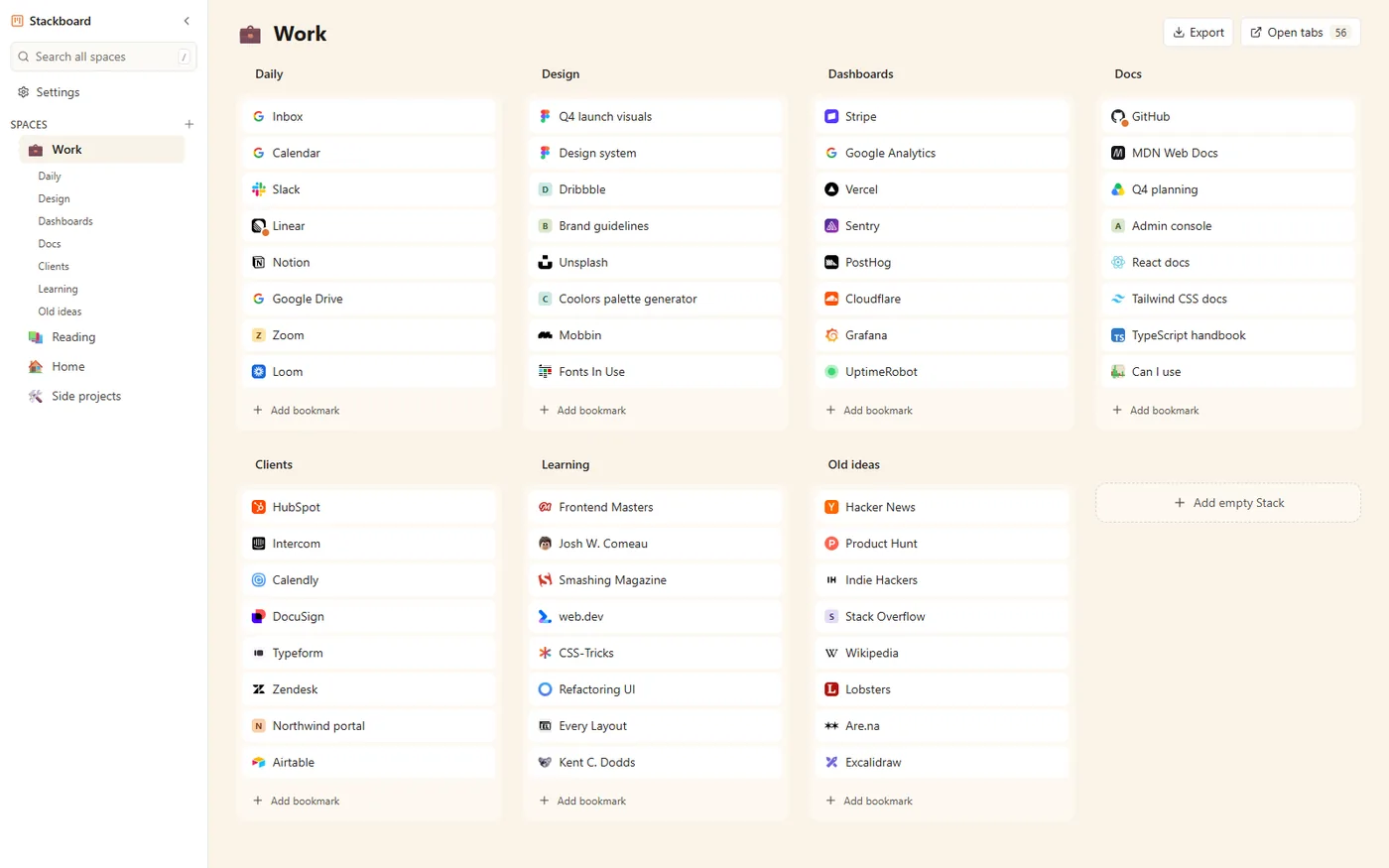
Stackboard uses the same convention. When a bookmark or a space has a name that starts with an emoji, the board shows that emoji as its icon in place of the site icon. The emoji lives in the bookmark’s name, so Chrome shows it too wherever that bookmark appears.
Questions
Can you change a bookmark icon in Chrome?
Chrome has no option for it: each bookmark uses the website’s own icon. You can remove the name to show only the icon, or put an emoji at the start of the name.
How do I change the color of a bookmark folder in Chrome?
Chrome doesn’t offer folder colors. A colored emoji such as 🔴 or 🔵 at the start of the folder name is the closest substitute.
How do I show only icons on the Chrome bookmarks bar?
Edit each bookmark on the bar and delete its name. Chrome then shows just the site icon.
Why do some of my bookmarks show a globe icon?
Chrome has no icon stored for that page, or the site doesn’t provide one. Visiting the page usually brings the icon back.
Try Stackboard
A free Chrome extension that turns your new tab into a board of your own bookmarks. No account, nothing leaves your browser.
Add to Chrome, it’s freeSources
- Google Chrome Help: Create, find and edit bookmarks in Chrome
- Chromium source: bookmark menu and dialog labels (bookmarks_strings.grdp)
- Chromium source: bookmarks bar buttons without a name (bookmark_button.cc)
- Microsoft Support: Keyboard shortcuts in Windows (emoji panel)
- Apple Support: Use emoji and symbols on Mac